192.168.1.1 Login Admin: Access Your Router Admin Panel


 May 11, 2026 11:31 am
If your router feels slow, keeps dropping connection, or you just can’t seem to get into the settings the first place to check is 192.168.1.1. This is the default gateway address that opens the door to your router’s admin panel, and understanding how it works can save you hours of frustration.
Most home routers from brands like Linksys, Netgear, ASUS, and TP-Link use this private IP address to let you manage everything from your WiFi password to DNS, firewall, and firmware settings. Once you know how to use it, you’re in control of your entire home network.
To access the admin page type 192.168.1.1 into your web browser’s address bar or click on the link below.
Based on your local IP address, this should be your router admin IP address. This is only the case if you are in the same network as your WiFi router.
Default logins for 192.168.1.1
What is 192.168.1.1?
Every device connected to a network needs a unique address just like a postal address, email, or telephone number. Without it, data has nowhere to go. On a network, this is called an IP address, short for Internet Protocol address.
Your router sits at the center of your home network and uses DHCP Dynamic Host Configuration Protocol to automatically assign a unique IP to every connected device. The router itself also gets an IP, and for most home setups, that address is 192.168.1.1.
Here’s how the address structure works. An IP address always has 4 sets of numbers, each between 0 and 255. The first three numbers are the Network Id and the last number is the device id. So in 192.168.1.20, the network id is 192.168.1 and the device id is 20.
The private IP ranges set aside for home networks and Local Area Networks are:
- 192.168.0.0 – 192.168.255.255
- 172.16.0.0 – 172.31.255.255
- 10.0.0.0 – 10.255.255.255
None of these can be assigned to a publicly accessible website. They are purely for internal communication inside homes and enterprise LAN and WAN setups.
Your router also handles something called NAT Network Address Translation. It converts your private address into a public address when talking to the outside internet, and switches it back when the data returns. This is how all your devices share one internet connection without any conflicts.
Disclaimer
This website is created for educational purposes only, and all content is originally written by Arif Khan nothing is copied from any source. We are not affiliated with any brand or company mentioned here. If you have any concerns, please contact us directly before taking any legal action.
Default Logins for 192.168.1.1
Getting to the login panel is only half the job you also need the right credentials to get inside. Most routers ship with simple default logins that are meant to be changed after first use.
| % Usage | IP Address | Username | Password |
|---|---|---|---|
| 60% | 192.168.1.1 | admin | admin |
| 10% | 192.168.1.1 | admin | — |
| 10% | 192.168.1.1 | admin | password |
| 4% | 192.168.1.1 | admin | 1234 |
| 2% | 192.168.1.1 | 1234 | — |
Beyond these, here are other common login combinations you may come across:
| Login | Password |
|---|---|
| admin | admin |
| admin | password |
| admin | (none) |
| administrator | administrator |
| administrator | (none) |
| user | password |
| user | user |
| root | root |
| root | (none) |
| sitecom | admin |
| admin | michelangelo |
What you see will differ based on your router’s brand, model, and firmware version. Many modern routers skip preset credentials entirely and ask you to create your own during first startup. If yours came with defaults, they’ll be printed on a label on the bottom of the device or listed in the manufacturer’s setup guide. These are case sensitive enter them exactly as shown.
Always change your default password right after your first login. Default router passwords are easy to hack and leaving them unchanged is one of the biggest home network security mistakes.
What Routers Use This IP Address/Companies Using 192.168.1.1 IP
A large number of mainstream router manufacturers use 192.168.1.1 as their default gateway. Linksys is the brand most closely associated with this address an American company known for reliable data networking hardware built for home users and small businesses.
Some Linksys models that use 192.168.1.1 as the default IP address include:
BEFDSR41W, CG7500, E1000, EA9500, MR20EC, MX12600, WAG120N, WRTSL54GS
Other major brands using this address:
ASUS
Models like the RT-AC55U and WL700gE use 192.168.1.1 as the default gateway IP address. ASUS covers everything from basic browsing to high-bandwidth tasks like gaming and streaming.
D-Link
A Taiwan-based company and global leader in enterprise networking. Models like the DSL-2640R, DVA-5592, and DSL-3682 all use 192.168.1.1.
TP-Link
A large China-based manufacturer known for user-friendly, reliable routers. Models include the Archer MR600 v3, TD-W9960, and TL-WR743ND.
Netgear
One of the top names in networking hardware with a strong reputation for quality. Models using 192.168.1.1 include the C6300, DGN2200, Nighthawk R7000, and R8300.
Tenda
A China-based producer of low-cost networking devices. Most Tenda devices ship with 192.168.1.1 as the default gateway.
Cisco, Huawei, Dell, and SMC Networks
Cisco, Huawei, Dell, and SMC Networks also use this address across many of their router models. Every router comes with a manual that specifies its router IP and for most of these brands, that IP is 192.168.1.1.
Brand Specific Router Default Logins
Every manufacturer sets its own default username and password. Here’s a quick reference for the most common brands:
| Brand | Username | Password |
|---|---|---|
| Netgear | Administrator | 1234 |
| Linksys | admin | admin |
| Asus | Administrator | admin |
| D-Link | admin | admin |
| TP-Link | Administrator | admin |
| Belkin | (blank) | admin |
| Cisco | Administrator | admin |
| Tenda | Administrator | admin |
| Arris | Administrator | admin |
| Huawei | Administrator | admin |
| 2WIRE | (none) | Wireless |
These are case sensitive. If the defaults don’t work, someone may have already changed them. Check the label on the bottom of your router most manufacturers print the login credentials directly on the device, especially when accessing the 192.168.8.1 Admin Login page for Huawei and other supported routers.
How to Login to 192.168.1.1 (Login Steps)
You might need to access 192.168.1.1 for a number of reasons setting up a new router, running a security update, changing your SSID, fixing a connectivity issue, or updating firmware to block unauthorized access. Whatever the reason, the steps are always the same.
- Step 1: Connect your router to your computer using an Ethernet cable. Some routers support wireless access, but many especially Linksys have this disabled by default for security.
- Step 2: Open your web browser and type
http://192.168.1.1into the URL bar. You can also type it ashttp://www.192.168.1.1or just192.168.1.1. Don’t use autocomplete it can lead you to type 192.168.l.l instead of the correct address. - Step 3: When the login panel appears, enter your router username and password. For most routers, both default to
admin. If that doesn’t work, check our router default usernames and passwords list. - Step 4: If you forgot your credentials, use the recovery instructions or check the label on your device. The default user and default password are almost always printed there.
- Step 5: Once inside the admin panel, you have full control over your internet settings DNS, SSID, wireless security, port forwarding, network parameters, and more.
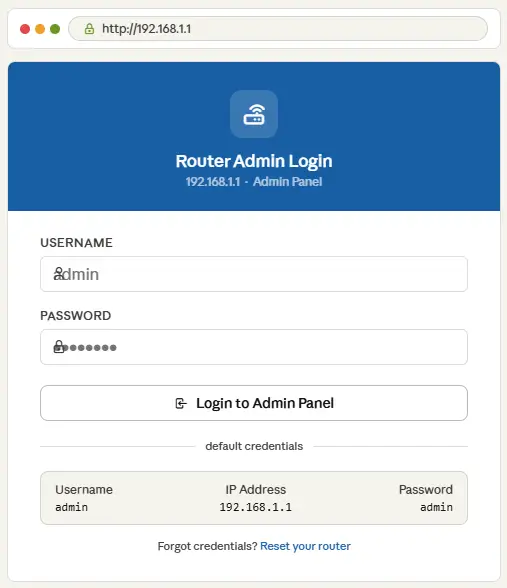
One personal tip: always double-check what you type in the address bar. Typing 192.168.l.l with a lowercase L instead of the number 1 is the single most common reason people can’t reach the login panel, and the same issue can also happen while accessing the 192.168.100.1 Login page if the IP address is entered incorrectly.
How to Find Your Router’s IP Address
Not every router uses 192.168.1.1. If you’re getting a long loading screen or the page won’t open at all, your network may be running on a different IP address entirely.
Common alternatives to try are 192.168.0.1, 10.0.0.1, and 192.168.2.1. If none of those work either, check the router IP address list for your specific brand and model. There’s also a full tutorial on how to find your router’s IP address directly from your device’s network settings no guessing needed.
How to Configure Your Router/Getting Connected
Before touching any settings, a bit of preparation makes everything easier. Collect your user manual, default passwords, and username, and place your router in a central, elevated spot in your home for the best wireless coverage.
Connect to power
Plug in the router and wait for it to fully boot. A green light usually means it’s ready, as described in the manual.
Connect to the internet source
Plug your broadband cable, DSL modem, or ISP gateway cable into the WAN port at the back of the device. Manufacturers color-code this port so it’s easy to spot. Once connected, the LED light should go green. Test it by plugging a laptop into one of the other Ethernet ports if you can browse, you’re set.
Access the settings page
Type 192.168.1.1 into your Internet browser’s address bar. Be careful 192.168.ll and 192.168.l.l are not valid addresses. Log in using the default username and password. Most routers launch an installation wizard automatically to walk you through the initial setup.
Configure your network
Set your SSID (Service Set Identifier), which is your wireless network name, and create a strong password. While you’re in the settings page, review your private IP address ranges, set up port forwarding if needed, and configure DDNS if your setup requires it. After that, your home or office network is ready for a stable, reliable wireless connection.
How to Reset 192.168.1.1 Router Login
There are three ways to reset your router login depending on whether you still have access to the admin panel or not.
Method 1: Change password via admin web panel
- Log into the admin panel using your full admin username and password credentials
- Go to Wireless WiFi or Wireless Security
- Select WPA, WPA2, or WPA3 settings based on your router’s capabilities
- Click password and type in your new password, then save
The very first thing you should do after logging into any routing device whether for business administration or home use is replace the default password. Default passwords are easy to hack. Don’t leave that door open.
Method 2: Physical Reset button
Press and hold the Reset button for 10 seconds. Watch for the Power LED to start blinking that confirms the router is being reset to factory settings. The reset button is usually near the power connector, though its exact location varies by model.
Method 3: Restore factory settings via setup page (Linksys)
- Connect your router to a computer via Ethernet cable
- Open your web browser and go to
http://192.168.1.1 - Enter the correct login and password combination
- Click the Administration tab, then the Factory Defaults sub-tab
- Under Factory Defaults, click Restore Factory Defaults
Note: Method 3 only works if you already know your login credentials. If you’re locked out, use Method 2.
Troubleshooting 192.168.1.1
Can’t reach the router admin panel? Something between you and the router is broken. Work through these checks one by one.
Router Status
Make sure the router is powered on and fully booted. Check the LED status lights — Power light, Internet light, WiFi light, and Ethernet lights. If any are off or behaving strangely, that’s your first sign something is wrong.
Connection and Reboot
You need an Ethernet cable plugged directly into one of the router’s LAN ports not the WAN port, which is the uplink to the internet. Unplug both the router and modem, wait a few minutes, then replug them one by one. Wait two minutes before trying 192.168.1.1 again.
IP Address Accuracy
All octets in 192.168.1.1 are numerical. Watch out for these common mistakes:
- Typing
192.168.l.l,192.168.i.i, or192.168.L.Linstead of192.168.1.1 - Adding spaces
192.168. 1.1won’t work - Removing dots
192.168.11or19216811are incomplete addresses
Firewall
Disable any active firewall temporarily. A conflict between your firewall settings and the router can block access completely.
Browser and Cache
Try a different browser. Clear your cache data or use an Incognito window to rule out browser-based issues. An outdated browser can also prevent the admin page from loading.
Still Not Working?
Your router may not use 192.168.1.1 at all. Try 192.168.0.1, 192.168.2.1, 10.0.1.1, 10.1.1.1, or 192.168.0.254. If none work, a factory reset using the Reset button is your last option.
If your router brand isn’t listed here, check the full router default usernames and passwords list for a complete reference across all major brands and models, especially if you’re trying to access the 192.168.254.254 Admin panel for login or network settings configuration.
FAQs About 192.168.1.1
Arif Khan 
Hi, I'm Arif Khan, a qualified Engineer with over 6 years of experience working with router and networking companies across the Philippines. I created 10001loginph.com to help everyday users navigate online platforms with ease and confidence. Alongside my engineering background, I'm also a passionate SEO Expert and Content Writer dedicated to delivering accurate, simple, and reliable digital guides. My goal is simple to make the internet easier for everyone, one guide at a time!